

By My Bias Hub
Your light stick will not turn on, the app cannot find it, or everyone else's seems to be doing something different at the concert. Before assuming it is broken, work out which part is misbehaving. Basic power, phone pairing and venue-controlled effects are three different things.
This guide starts with gentle checks you can do at home. The manual for your exact model always takes priority. Button combinations, batteries and concert requirements are not the same across every group or version.
Start here: what is happening?
- No light at all? Start with the power checks below.
- It lights up, then fades or switches off? Check batteries and whether you are seeing a normal lighting mode.
- It works by itself but the app cannot find it? Go to phone pairing.
- It pairs at home but does not follow the show? Read the concert-sync section before resetting anything.
Stop testing if there is unusual heat, a burning smell, leaking batteries, liquid inside or visible damage. Do not keep switching it on, attempt to charge it or take the electronics apart. Contact the retailer or manufacturer for advice. Do not touch leaking battery residue.
1. My light stick will not turn on
For models powered by replaceable batteries, you will need to buy the correct batteries separately. We do not sell batteries.
- Check the exact battery specification. Use the size and type in the manual, not just whatever fits. For a replaceable-battery model, try a complete fresh matching set. Do not mix old and new batteries or different types.
- Check every + and - marking. Follow the holder's diagram rather than assuming all batteries face the same way.
- Check the removable holder and cap. With the power off, follow the manual to seat the holder in its correct orientation and close the cap normally. Stop if it jams; do not force it or bend contacts.
- Try the normal power-on instruction. Use the manual's button sequence, without trying to connect a phone at the same time. A long press may do something different from a short press.
For battery handling, see Energizer's battery-care guidance. If a fresh set and correct assembly do not help, move to the contact checklist below. Foil, loose metal, improvised battery packs and opening the head are not troubleshooting shortcuts.
2. It flickers, fades or turns off
First distinguish an intentional flashing mode from an unexpected loss of power. Test the ordinary standalone mode described in your manual, away from a concert's wireless control. Note whether the problem happens immediately, after a while, or only when the device moves.
Low batteries are worth checking before blaming the LEDs. HYBE's official TXT Ver.2 app guidance specifically warns that depleted batteries can cause dimming, unexpected colours and shutdown. It recommends three fresh AAA alkaline batteries for that model. This is not a battery specification for every light stick.
If a gentle movement causes the power to cut out even after correct reassembly, stop repeatedly shaking or tightening it. Record the symptom and ask for help. A repeatable fault is useful information; force is not a fix.
3. The app cannot find my light stick
Check the group and version number on the box. Use the app linked by the artist or manufacturer for that edition. A similarly named app, an older version's tutorial or your phone's Bluetooth screen alone may not complete the setup the official app expects.
- Confirm that the light stick works in its basic mode first.
- Update the official app and check its phone/operating-system requirements.
- Enable Bluetooth and review the permissions requested in the official app instructions. Some Android versions also require location permission for Bluetooth discovery.
- Put the light stick into its documented pairing mode, then follow the app's connection flow with the phone nearby.
- If discovery still fails, close and reopen the app and restart the phone and light stick before one clean retry. Do not interrupt an update that is already running.
There is no universal reset combination. Do not keep trying random long presses or download unofficial firmware. If an official update fails, record the message and use that model's support instructions.
Verified model notes
TXT Official Light Stick Ver.2: HYBE says to start with it off, then hold the middle and bottom buttons together for two seconds until it blinks blue. Continue in the official TXT Ver.2 app. These steps apply to Ver.2, not every TXT edition. Our TXT Ver.2 listing identifies the model.
ENHYPEN Official Light Stick Ver.2: HYBE specifies holding the left and right buttons together for two seconds from the off state; blue blinking indicates Bluetooth mode. Use ENHYPEN's official guide and app links. The official app guidance also says a Light Stick and Light Band should be paired separately, not simultaneously. A Light Band is a different product with different power instructions. See our ENHYPEN Ver.2 listing for the light stick.
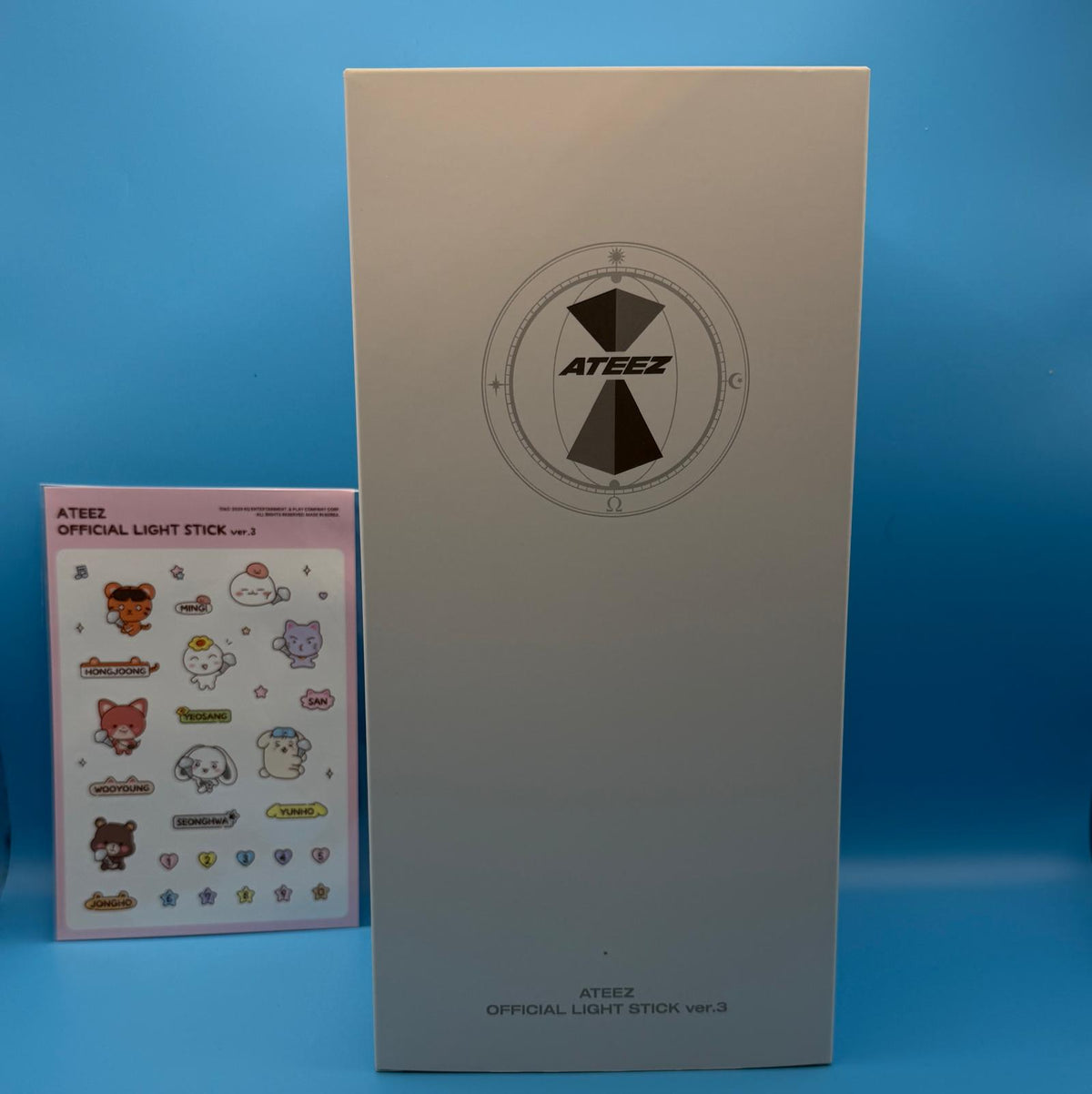
ATEEZ Official Light Stick Ver.3: Follow ATEEZ's official Ver.3 application tutorial, rather than borrowing the Ver.2 sequence. The official Ver.3 care guidance specifies AAA alkaline batteries and removing the batteries and battery socket when not in use. Our ATEEZ Ver.3 listing has the purchase contents and current availability.
4. It works at home but will not sync at the concert
Successful phone pairing is not a promise of concert syncing. The show must support your exact model, and any event-specific registration must be complete. Do not use another tour's instructions as proof of what this venue will do.
- Read the current artist, organiser and venue notices for your date.
- Check supported light-stick versions and whether the event asks for an app, firmware update or seat registration.
- If seat registration is required, double-check the date, venue and seat information against your ticket.
- Follow the event's instructions for the mode to use during the show. Do not keep changing settings once venue control has started.
- If available, ask the official light-stick support desk before the performance.
For example, TXT's ACT : PROMISE notice describes seat pairing and different firmware requirements for different versions. It is an example of why the specific event notice matters, not a universal instruction for future concerts. HYBE advises completing the required setup before arriving because crowded venues can make updates and pairing difficult.
A missing concert option does not automatically mean a faulty product. Some event functions only become available close to the show. Check the current official announcement instead of repeatedly reinstalling the app. And if syncing never comes together, you can still enjoy the concert: a light stick is optional, not an entry requirement unless the organiser explicitly says otherwise.
5. After the show: store it safely
Switch it off and follow the model's storage instructions. Remove replaceable batteries for extended storage and keep them away from children. Store the light stick dry, protected from impact and away from heat. Carry spare batteries in protective packaging, not loose with keys or coins.
Do not assume a decorative cover makes a light stick waterproof. Sony's official Stray Kids Ver.2 rain warning explains that using it wet can cause a short circuit and prevent it starting. If yours gets wet, stop using it and seek model-specific advice; do not try to dry it with direct heat.
A cover, cradle or display stand is not automatically a charger, and compatibility does not carry across versions. Read our first light-stick buying guide for the distinction between the light stick and separate accessories.
Still stuck? Here is what to send us
If you bought from MyBiasHub, contact us with:
- Your order number and the exact group/model/version.
- A brief description: no power, intermittent power, pairing failure or concert-only trouble.
- The battery type and the checks you have already tried.
- Your phone model, operating-system version, app name/version and any error message, if relevant.
- A clear photo or short video of the issue, where safe. Do not recreate overheating, leakage or another dangerous fault for a video.
Keep ticket barcodes, payment details and passwords out of screenshots. You do not need to attempt a repair before contacting us.
Preparing for a show? Our first-concert checklist covers the rest of the bag. You can also browse the light-stick collection for current models, but a connection problem alone is not a reason to buy a replacement.
Model guidance checked 10 September 2026. Apps and event requirements can change; follow the current official instructions linked above.